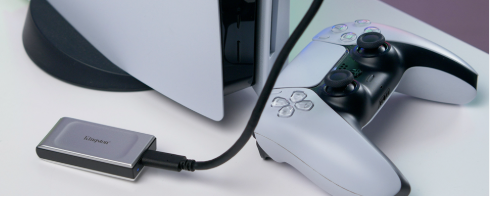
Choosing the perfect ps5 ssd upgrade can make all the difference between sluggish load times and a seamless next-gen gaming experience. As modern titles demand more space and faster data speeds, upgrading your console’s storage has become essential for serious gamers. This guide helps you choose the right PS5 SSD by covering compatibility, speed, capacity, and top brands to maximize your gaming experience.
Understanding PS5 SSD Compatibility
To upgrade your PS5 storage, your SSD must meet specific requirements:
- Form Factor: Must be an M.2 2280 SSD (22mm wide, 80mm long).
- Interface: Requires PCIe Gen4 NVMe for fast data transfer.
- Heatsink: Every SSD needs a heatsink to prevent overheating during long gaming sessions.
- System Software: Ensure your PS5 has the latest update, as older versions may not support new SSDs.
- Size Check: The SSD’s physical size and heatsink must fit inside the PS5’s expansion slot.
Following these compatibility rules ensures your new SSD works smoothly and safely with your PS5.
Determining the Right SSD Speed
When choosing a PS5 SSD, speed is crucial for smooth gameplay:

- Read/Write Speeds: PS5 requires at least 5,500 MB/s read speed for optimal performance. Higher speeds reduce load times and in-game stuttering.
- PCIe Gen4 NVMe Drives: Only SSDs with PCIe Gen4 offer the fast speeds needed for next-gen games.
- Impact on Gaming: Faster SSDs improve load times, texture streaming, and overall responsiveness, especially in large or open-world games.
- Balancing Cost and Speed: Ultra-fast drives are more expensive. Choose one that meets PS5 requirements without overspending.
Choosing the right speed ensures your games run smoothly and take full advantage of the PS5’s hardware.
Choosing the Right Capacity
Choosing the right SSD size for your PlayStation 5 depends on how often you play, the types of games you enjoy, and your budget. Here’s a simple guide to help you decide which capacity fits your gaming lifestyle:
- 1TB: Good for casual gamers; about 667 GB usable. Works if you play a few games at a time but may need to delete or move games often.
- 2TB: Balanced choice; about 1.4 TB usable. Ideal for most gamers, offering a good mix of price, space, and convenience.
- 4TB: Best for enthusiasts and streamers; about 3.4 TB usable. Lets you keep many games ready to play but costs more.
- 8TB: Maximum storage; about 7.4 TB usable. Suited for hardcore gamers or collectors who want all games stored, but very expensive.
Budget Considerations
When upgrading your PS5’s storage, it’s important to find the right balance between price, performance, and long-term value. Not every gamer needs the most expensive SSD. What matters is choosing one that fits your gaming habits and budget.
When to Choose a High-End SSD
Choose a high-end SSD if you:
- Play a lot of AAA titles or graphically intensive games that benefit from faster load times.
- Stream, record, or edit gameplay, where every second of performance matters.
- Want the best possible reliability, durability, and sustained speed under heavy use.
- Prefer future-proofing your setup with PCIe Gen4 drives that exceed PS5’s minimum requirements.
Best For: Hardcore gamers, content creators, and competitive players who value top-tier performance or long-term durability.
When to Choose a Mid-Range SSD
A mid-range SSD can be an excellent choice if you:
- Mainly play a few games at a time and don’t need maximum benchmark speeds.
- Want solid performance that still meets or exceeds Sony’s official PS5 requirements.
- Are looking for good value without compromising noticeably on speed or reliability.
Best For: Casual and regular gamers who want fast loading, stable performance, and better value for money.
choose high-end if you demand the best or use your PS5 heavily; go mid-range if you want great performance at a smarter price.
Top 4 Best PS5 SSD Brands and Models this 2025
Top 1: Adata XPG MARS 980 BLADE
The ADATA XPG MARS 980 BLADE is a top-tier PCIe 5.0 SSD designed for speed and future-proof performance. It offers up to 4 TB of storage, with blazing-fast speeds of around 14,000 MB/s read and 13,000 MB/s write, along with advanced caching, error correction, and full PS5 compatibility. This SSD gives you fast load times, lots of storage, and long-lasting reliability for your PS5.
Top 2: WD Black SN850X
The WD Black SN850X is a fast and reliable PCIe 4.0 SSD that works perfectly with the PS5. It offers read speeds up to around 7,300 MB/s, well above the console’s speed requirement. You can choose between heatsink and non-heatsink versions. It’s an excellent choice for gamers who want top performance at a reasonable price, giving you fast load times and great value without the high cost of premium drives.
Top 3: Samsung 990 Pro
The Samsung 990 PRO is a top-performing PCIe 4.0 NVMe SSD built for speed and reliability. It offers read speeds up to 7,450 MB/s and write speeds up to 6,900 MB/s, with storage options of 1 TB. It works perfectly with the PS5, delivering fast load times, smooth gameplay, and long-lasting performance.
Top 4: Corsair MP600 PRO LPX
The Corsair MP600 PRO LPX is a high-speed PCIe 4.0 NVMe SSD made for the PS5. It delivers read speeds up to 7,100 MB/s, which is faster than the console’s required speed. Most versions come with a low-profile heatsink that fits perfectly in the PS5’s expansion slot. It offers excellent performance and reliability, making it a great choice for gamers who want fast load times and future-ready storage.
Installation Overview
- Power Off and Unplug: Turn off your PS5 completely by holding the power button until two beeps sound, then unplug all cables to avoid electrical damage.
- Remove the PS5 Faceplate: Place your PS5 on a stable surface, then gently lift and slide off the faceplate to access the internal components and SSD expansion slot.
- Access the SSD Expansion Slot: Locate the SSD expansion slot near the cooling fan, remove the screw with a Phillips screwdriver, and take off the cover to prepare for SSD installation.
- Prepare the SSD Slot: Remove the screw and spacer from the SSD slot, then adjust the spacer to match your SSD’s length for a secure fit.
- Insert the M.2 SSD: Gently insert the SSD into the slot at a 30-degree angle, making sure it lines up with the connector. Then, press it down flat and secure it with the screw. If your SSD doesn’t have a built-in heatsink, attach a compatible one to help keep it cool.
- Reassemble Your PS5: After securing the SSD, put the metal cover back on and tighten its screw. Then, carefully reinstall the PS5’s faceplate by aligning it with the hooks and sliding it into place. Ensure everything fits snugly and nothing is loose.
- Reconnect and Format the SSD: Reconnect all cables and turn on your PS5. The console will detect the new SSD and prompt you to format it. Follow the on-screen instructions to complete formatting, which prepares the SSD for use and optimizes it for your PS5.
Maintenance Tips
- Keep it Cool: Ensure good airflow around your PS5 to prevent overheating.
- Check Storage: Regularly monitor space in Settings → Storage and keep 10–20% free for smooth performance.
- Update Software: Always install the latest PS5 updates for better SSD speed and stability.
- Manage Games: Delete or move unused games. Reinstall games if they start running slowly or have performance issues.
- Handle with Care: Power off before removing the SSD and avoid touching connectors to prevent damage.